|
grandMA3 User Manual » Update the Software » Network Update
|
Version 2.5 |
Use Software Update to update one or more stations on a network.

|
Important: |
| Make sure all devices are on the same network. Check the network adapter. For more information see Networking and Interfaces and IP. |
Preliminary Procedures
- Connect all grandMA3 devices to a network using ethernet cables.
- Download the required installation packages from www.malighting.com, Downloads.
- Copy all installation packages for grandMA3 software into the root directory of the USB flash drive. For more information see Update the Software. Insert the USB flash drive in the USB port on the device.
- Alternatively, on Windows, copy the zipped files from the ma folder to C:\ProgramData\MALightingTechnology\installation_packages.
- Alternatively, on macOS, copy the files from the ma folder to the directory ~/MALightingTechnology/installation_packages.
Procedure
To update the grandMA3 device, follow the onscreen instructions that appear during the update.
To access Software Update:
- Press Menu or tap
 .
- Tap Settings and then tap Software Update. The Software Update window opens, as shown in the image below:
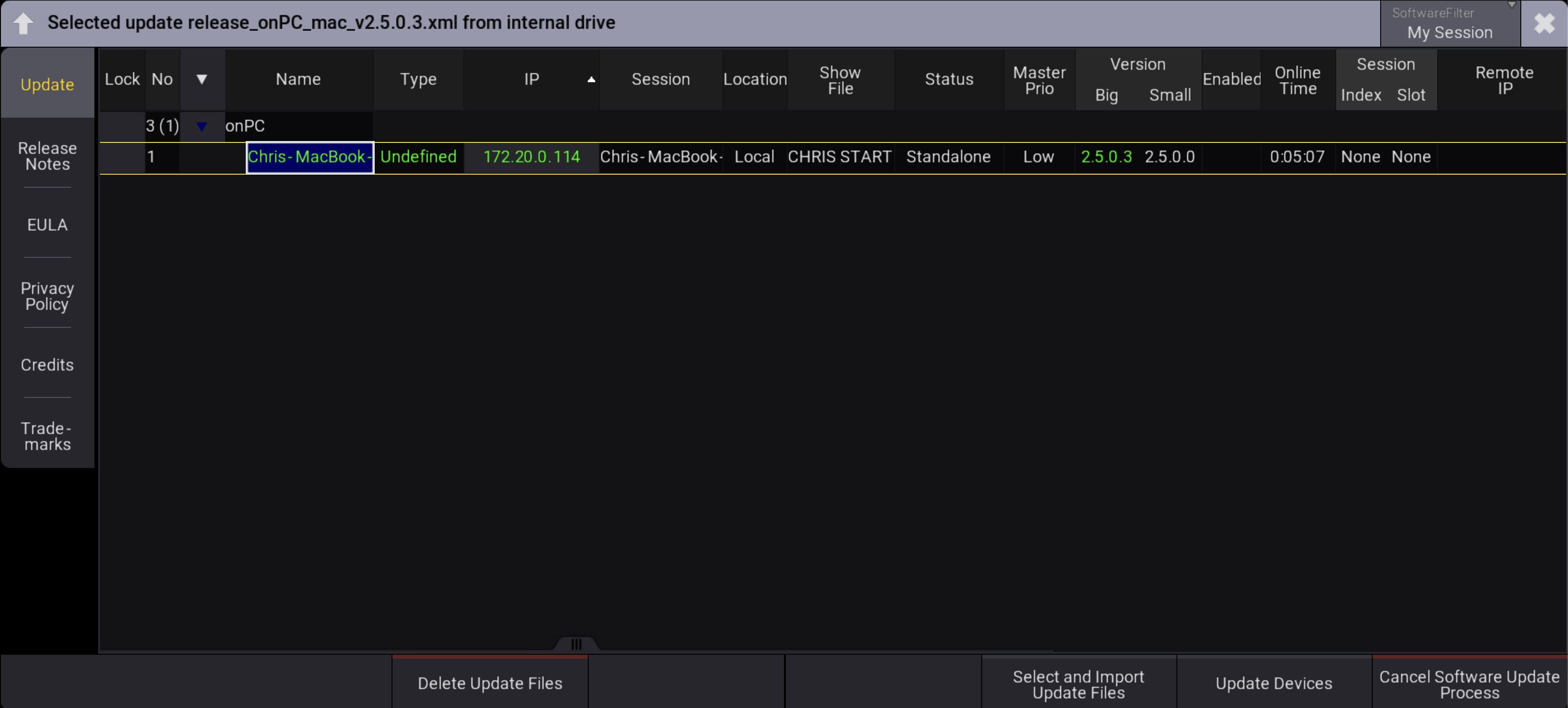
- To select an update file, tap Select and Import Update Files. The Select Update pop-up opens:
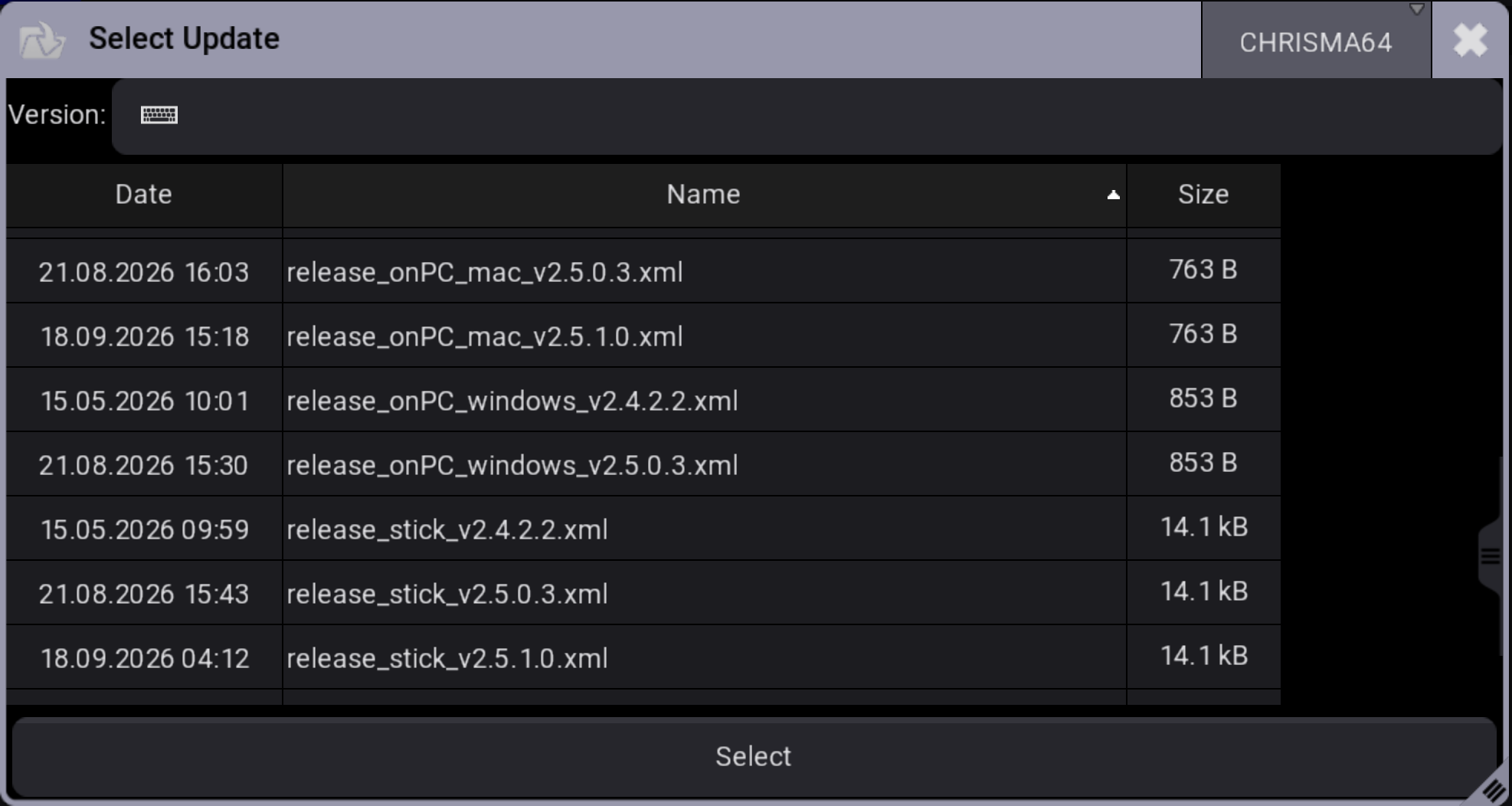
- Select the correct update file location (Internal or an external device).
- Select the desired update file.
- Tap Select. The pop-up closes, and the End User License Agreement (EULA) opens.
- Scroll down to read the complete EULA. The I agree button in the upper-right corner of the pop-up turns white.
- To accept the EULA and continue, tap I agree.

Hint: The title bar of the software update menu displays the selected update file. 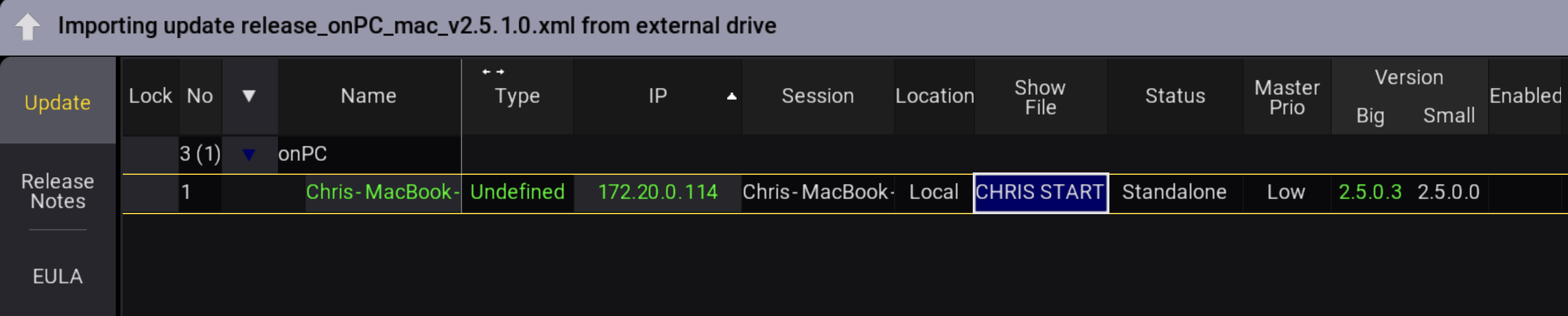
Update v2.5.1.0 is displayed in the title bar - Select one or more devices. Selected devices appear in blue.
- Tap Update Devices. The software update starts copying files.
- Cancel Software Update Process: Tap to cancel the current update process. For more information see CancelSoftwareUpdate keyword.
|
|
Important: |
| It is also possible to update the grandMA3 onPC, consoles, xPort Nodes, onPC command wing XT, processing unit, and onPC rack-unit directly. Select the correct XML file for each device. For more information on which XML file to use for each device see Update the Software. |
Update Confirmation
After the files are copied to the grandMA3 device, the Update Confirmation pop-up opens on the station being updated.
When the countdown expires, the device automatically updates and reboots. To postpone the update, tap Update Later and Cancel Reboot before the countdown expires.
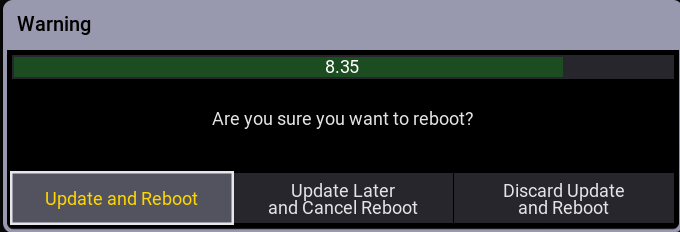
- Update and Reboot: Updates and reboots the device.
- Update Later and Cancel Reboot: Postpones the update and leaves a red indicator in the control bar
 .
- Discard Update and Reboot: Discards the update and reboots the device.
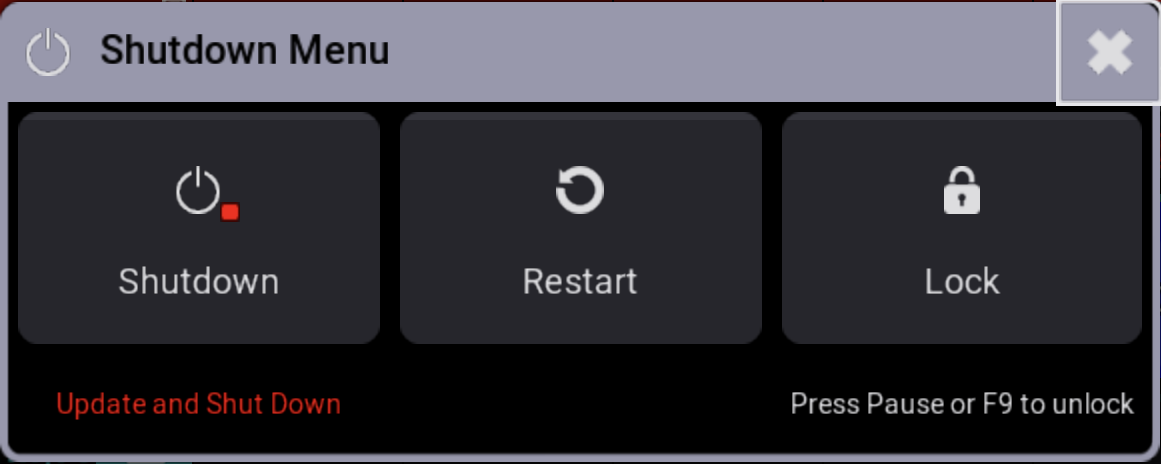
To install a postponed update, tap Shutdown in the Shutdown Menu. The Update Confirmation warning pop-up opens.
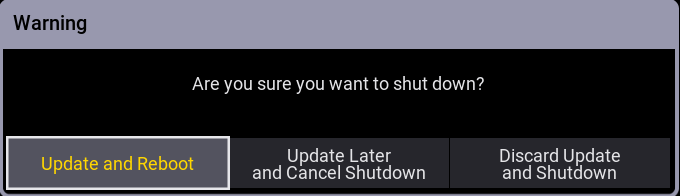
- Update and Reboot: See Update Confirmation above.
- Update Later and Cancel Shutdown: Postpones the update and cancels the shutdown.
- Discard Update and Shutdown: Discards the update and shuts down the device.
|
|
Hint: |
Tapping  (Restart) in the shutdown menu also opens an Update Confirmation pop-up. |
For more information see Shut Down the System.
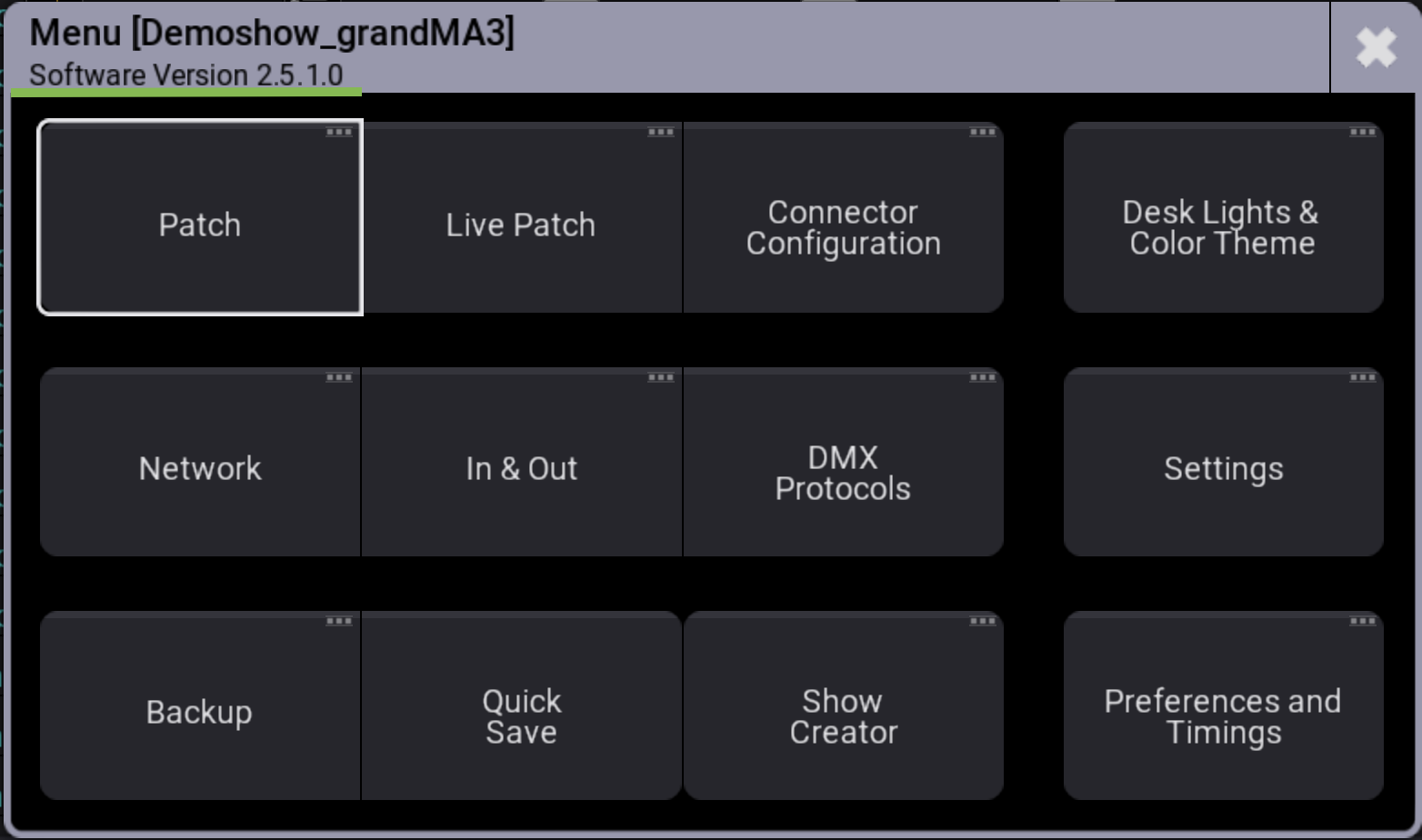
After the grandMA3 onPC application opens, open the Main Menu pop-up. Confirm that the displayed software version matches the version of the selected update package.
Additional Steps for grandMA3 onPC on macOS
When updating grandMA3 onPC for macOS from a version prior to version 2.5.0.3, the application closes, and a Terminal window opens with a password prompt.
To continue installation, enter the macOS account password and press Return. No characters appear as you type the password; this is intended behavior.
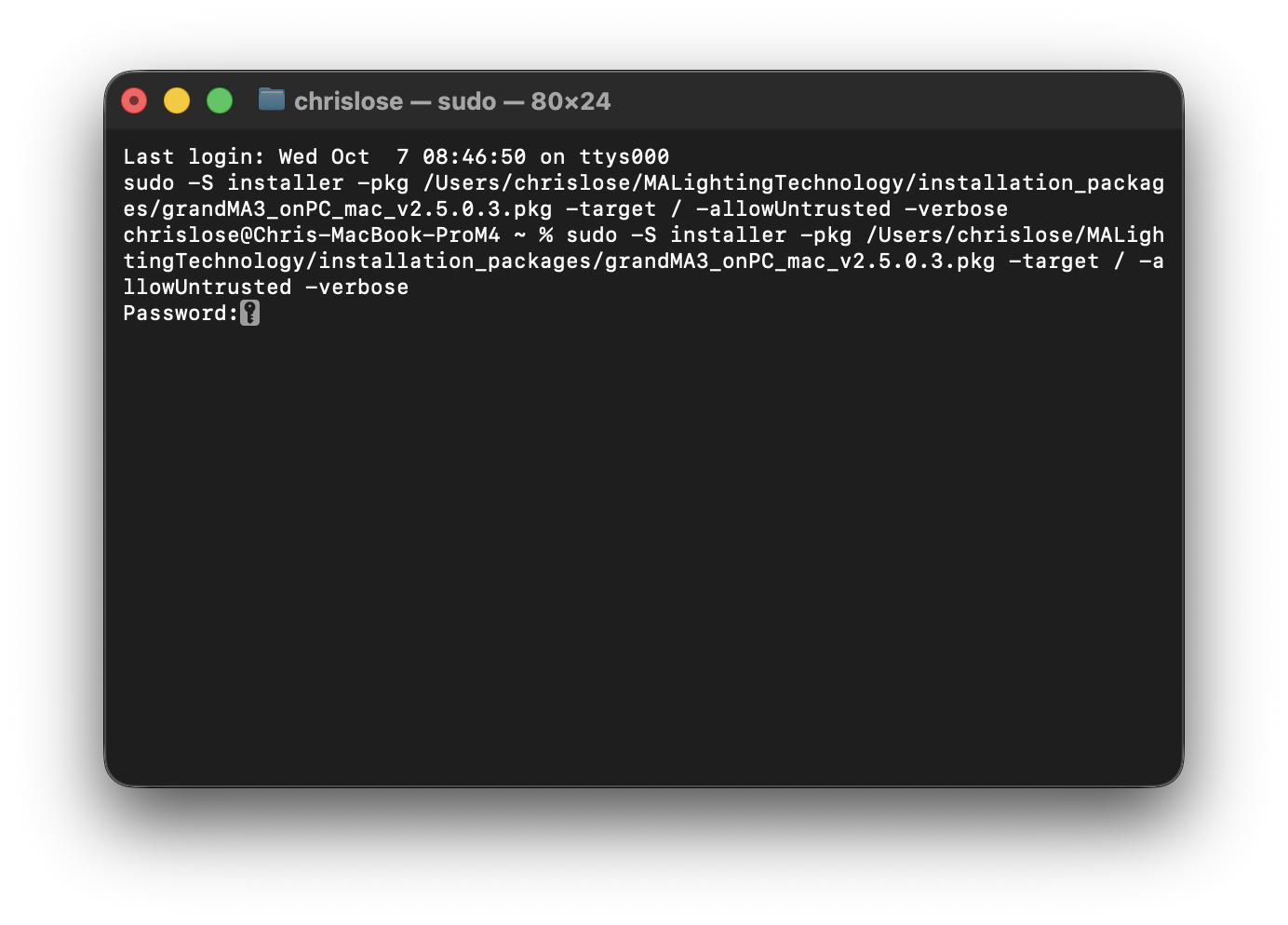
After the password is entered, installation begins. When installation is complete, the updated grandMA3 onPC application opens automatically.
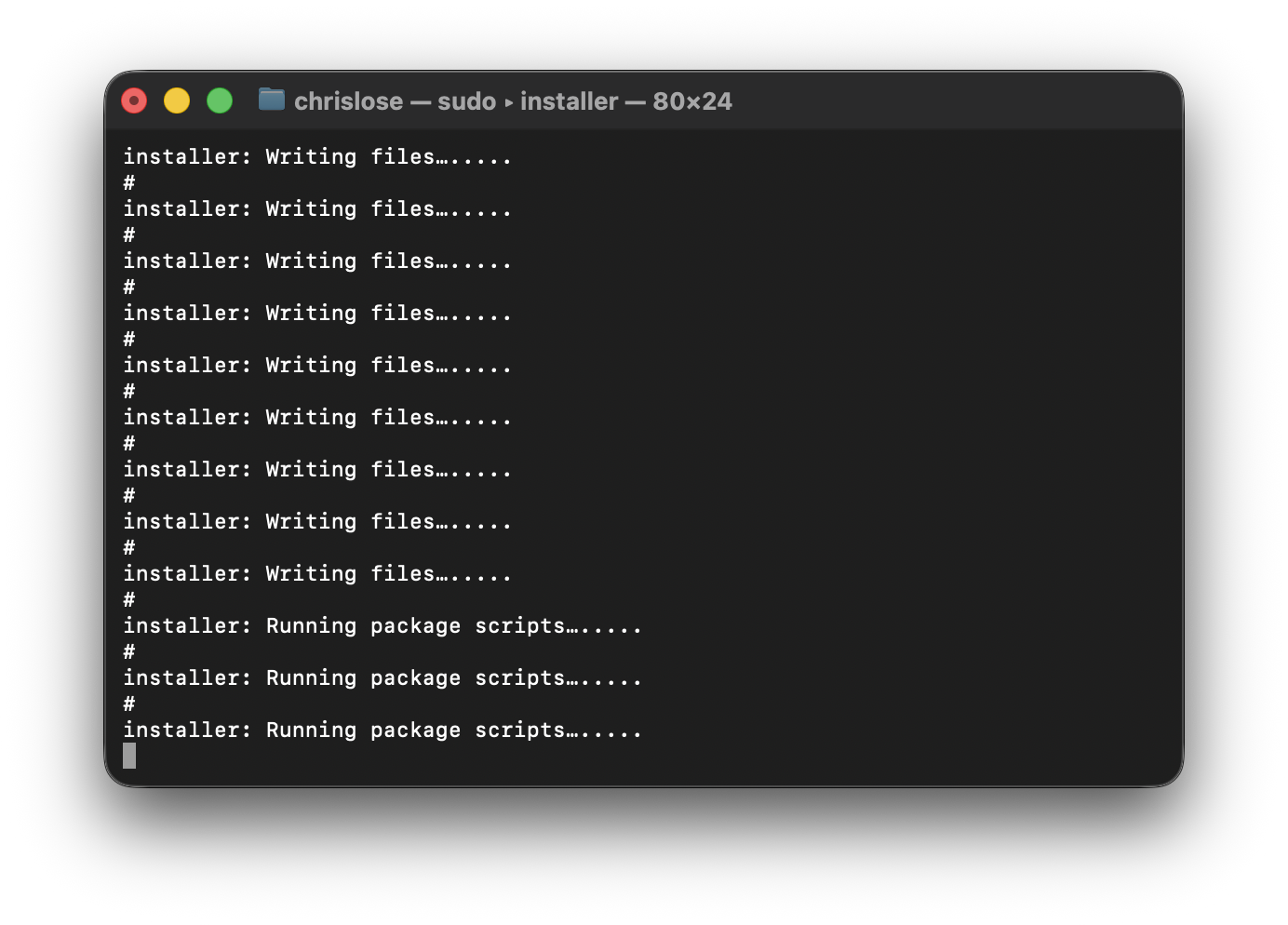
After the grandMA3 onPC application opens, open the Main Menu pop-up. Confirm that the displayed software version matches the version of the selected update package.
Additional Steps for grandMA3 on PC on Windows
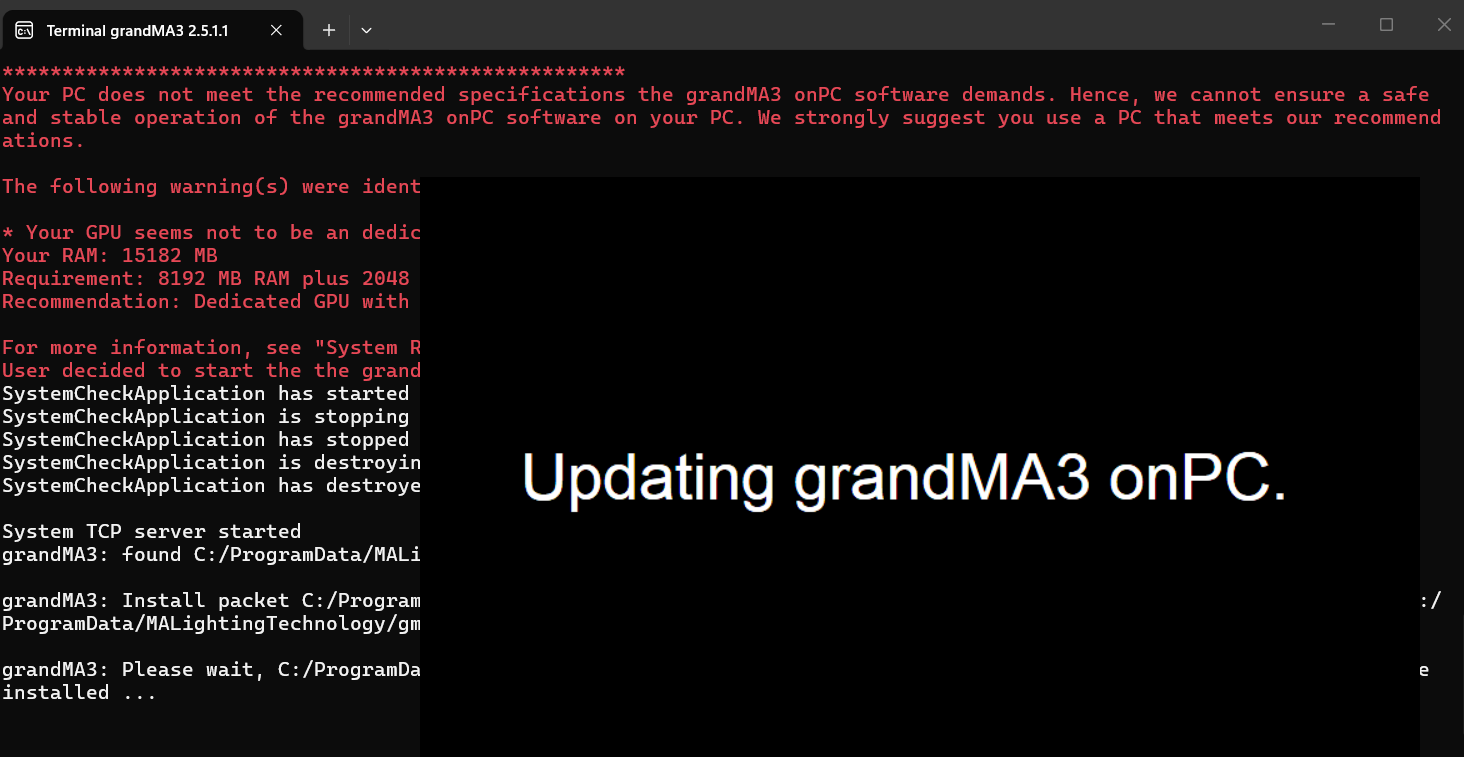
When updating grandMA3 onPC for windows, the application closes, and a User Account Control (UAC) pop-up could appear. To continue the installation, click Yes. A Terminal window opens and the installation starts.