grandMA3 onPC Terminal App
|
grandMA3 User Manual » grandMA3 onPC » onPC Terminal App
|
Version 2.5 |
The grandMA3 Terminal app connects to the Command Line or System Monitor of grandMA3 onPC running on the same computer or another grandMA3 station on the network.
Use the command line to enter grandMA3 commands. The system monitor provides read-only access to diagnostic messages and is generally used for troubleshooting at the request of technical support. For routine system information, use the Message Center.
To connect:
- Start the grandMA3 Terminal app.
- Enter one of the following commands:
- To connect to the command line, enter cmdline [IP Address].
- To connect to the system monitor, enter sysmon [IP Address].
- Press Enter on Windows or Return on macOS.
grandMA3 Terminal App on Windows®
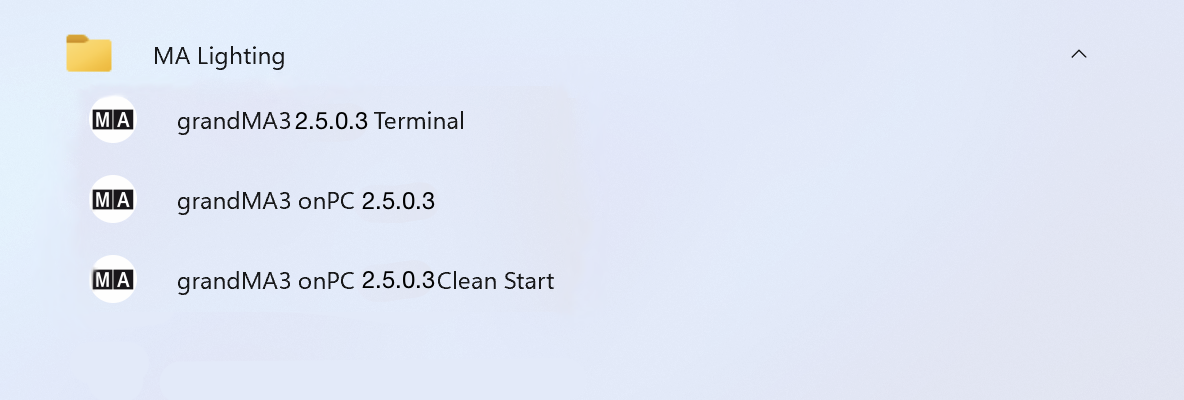
After installing grandMA3 onPC on Windows, the grandMA3 Terminal app is available in the MA Lighting folder in the Start menu.
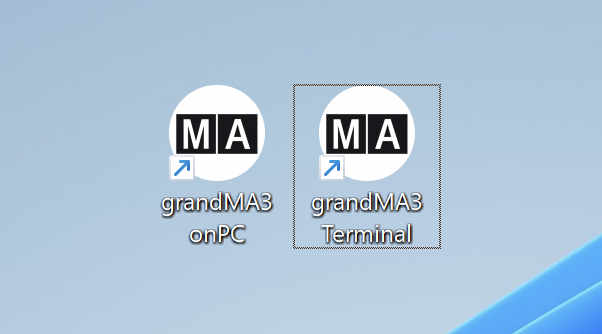
If selected during installation, a shortcut to the grandMA3 Terminal app is also available on the desktop.
grandMA3 Terminal App on macOS®
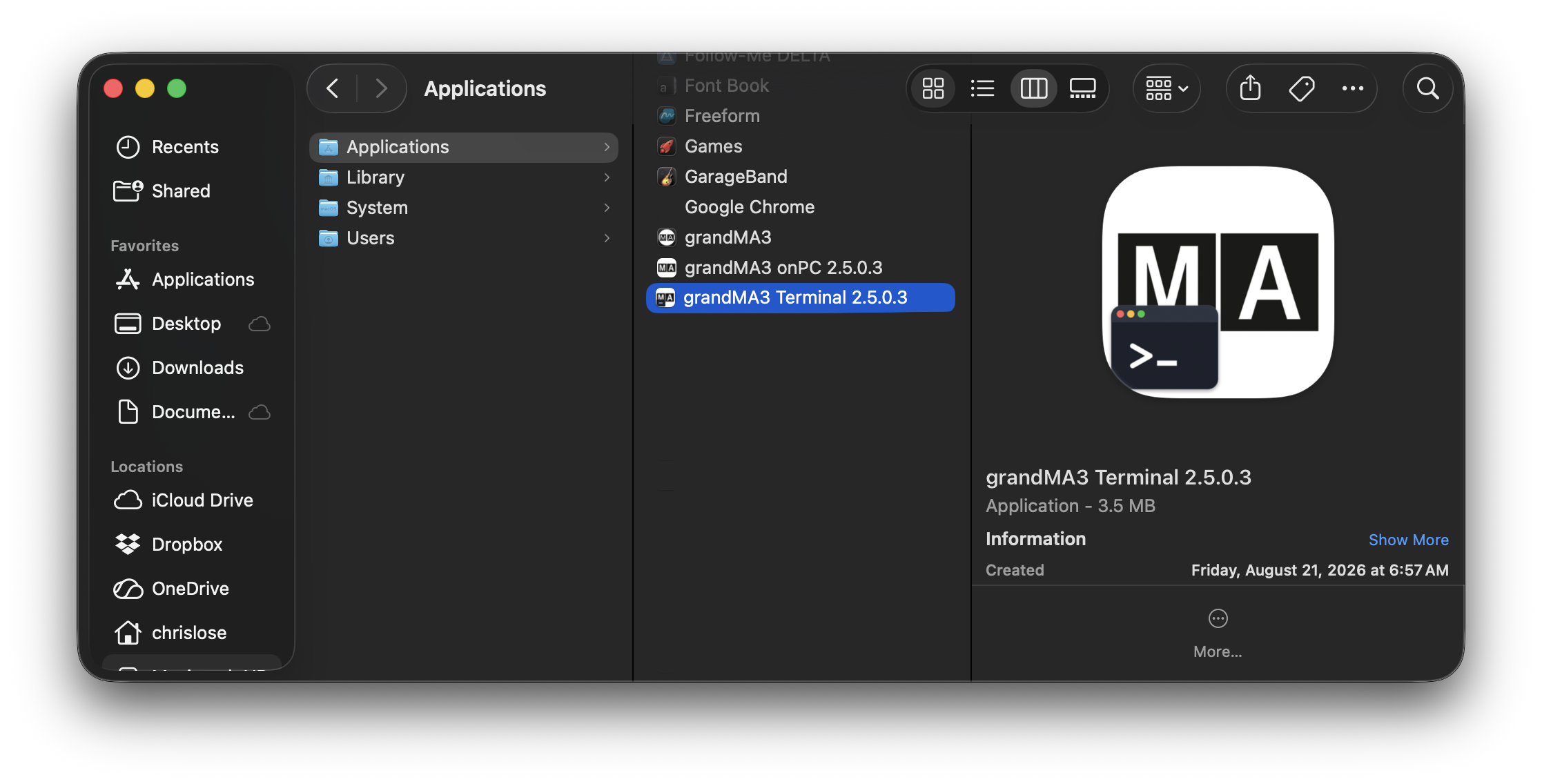
To start the grandMA3 Terminal app on macOS, open the Applications folder and launch grandMA3 Terminal x.x.x.x. The version number identifies the corresponding version of the app.

|
Hint: |
| In grandMA3 versions prior to version 2.5.0.3, start grandMA3 onPC before starting the grandMA3 Terminal app on macOS. |
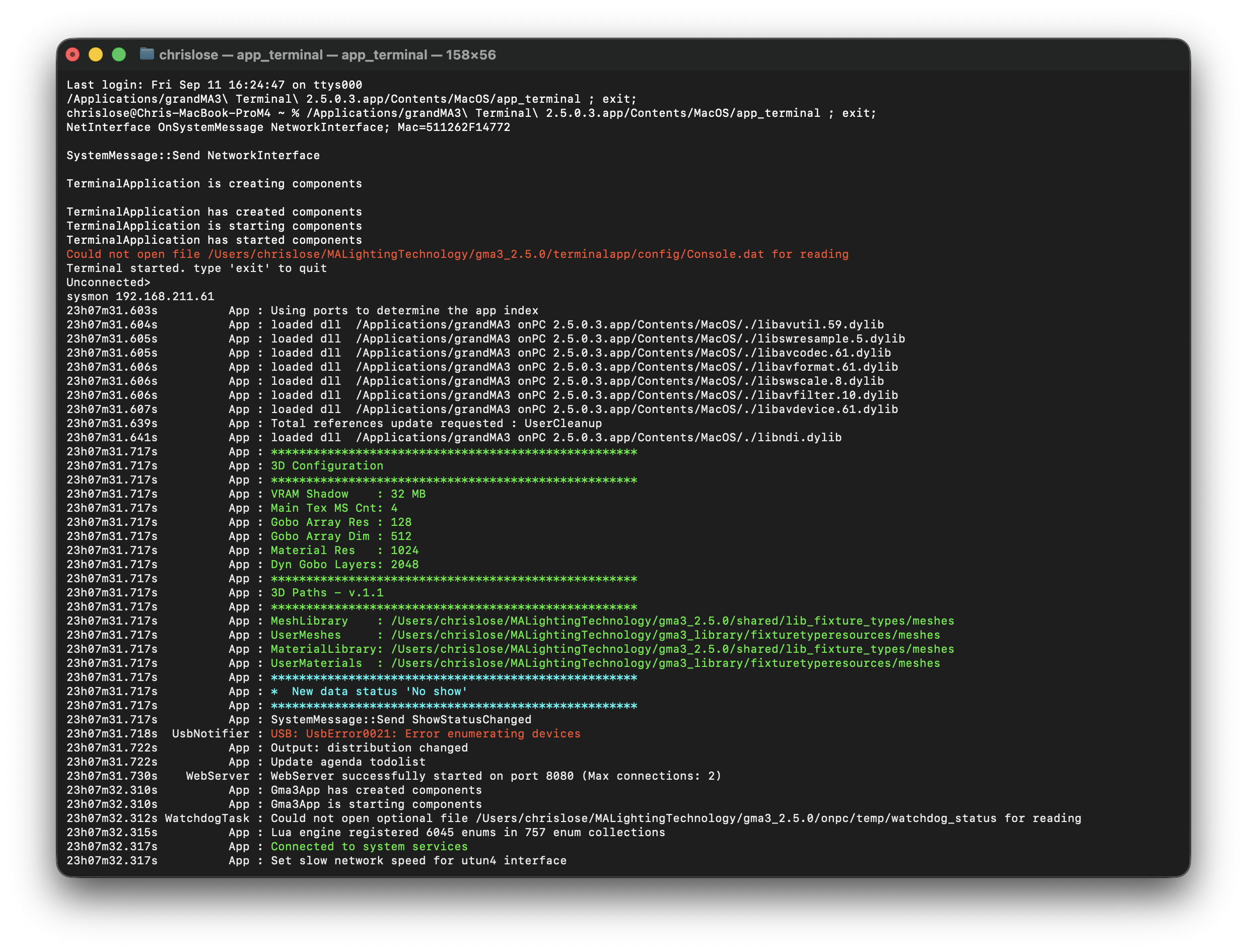
System Monitor Example
- Start the grandMA3 Terminal app.
- Enter sysmon 192.168.211.61.
- Press Enter on Windows or Return on macOS.
The grandMA3 Terminal app displays system monitor messages from the station at 192.168.211.61. This connection is read-only.
Command Line Example
- Start the grandMA3 Terminal app.
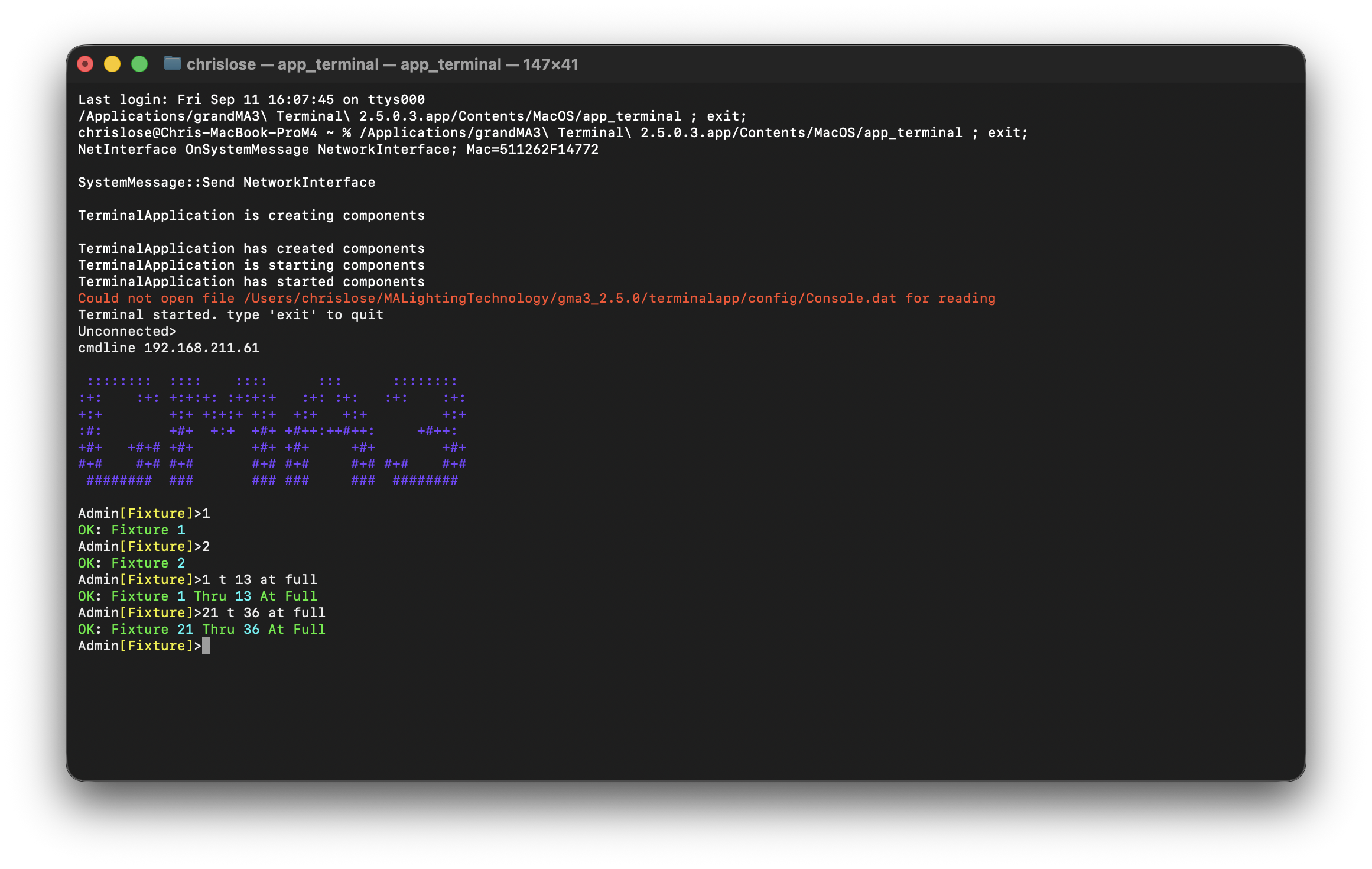
- Enter cmdline 192.168.211.61.
- Press Enter on Windows or Return on macOS.
The grandMA3 Terminal app displays the command prompt of the station at 192.168.211.61. Enter grandMA3 commands and view their responses.