Keyboard Shortcuts
|
grandMA3 User Manual » Device Overview » Shortcuts » Keyboard Shortcuts
|
Version 2.3
|
Keyboard shortcuts allow fast operation of the console and onPC command wings via the (internal) keyboard.
Some of these user-editable shortcuts are for general use and override other commands. Others are related to specific windows and pop-ups.
The KeyboardShortcut keyword is used to edit and list the keyboard shortcuts.
Keyboard Shortcuts are part of the user profile. This makes it possible for every user/user profile to use their own shortcut definitions within a show file.
Turn the Keyboard Shortcuts on
- Tap ShCuts next to the command line or press F10 on your keyboard.

 The keyboard
shortcuts are turned on (yellow text).
The keyboard
shortcuts are turned on (yellow text).Turn the Keyboard Shortcuts off
- Tap ShCuts next to the command line or press F10 on your keyboard.


|
Hint: |
| In certain menus and pop-ups where the shortcuts are not relevant, they are switched off and back on automatically. The shortcut icon turns red. |
Shortcut Examples
The images are showing the activated shortcut menu. The menu color can be changed in the color theme.
The lavender text in the images shows the keyboard shortcuts when ShCuts is enabled.
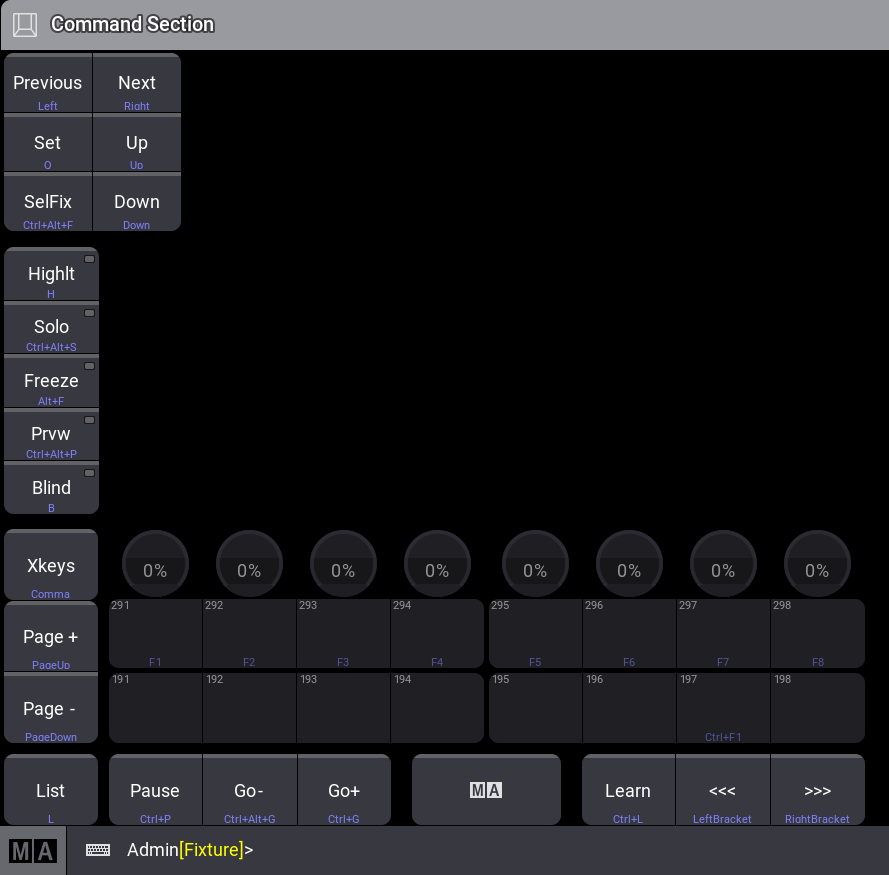
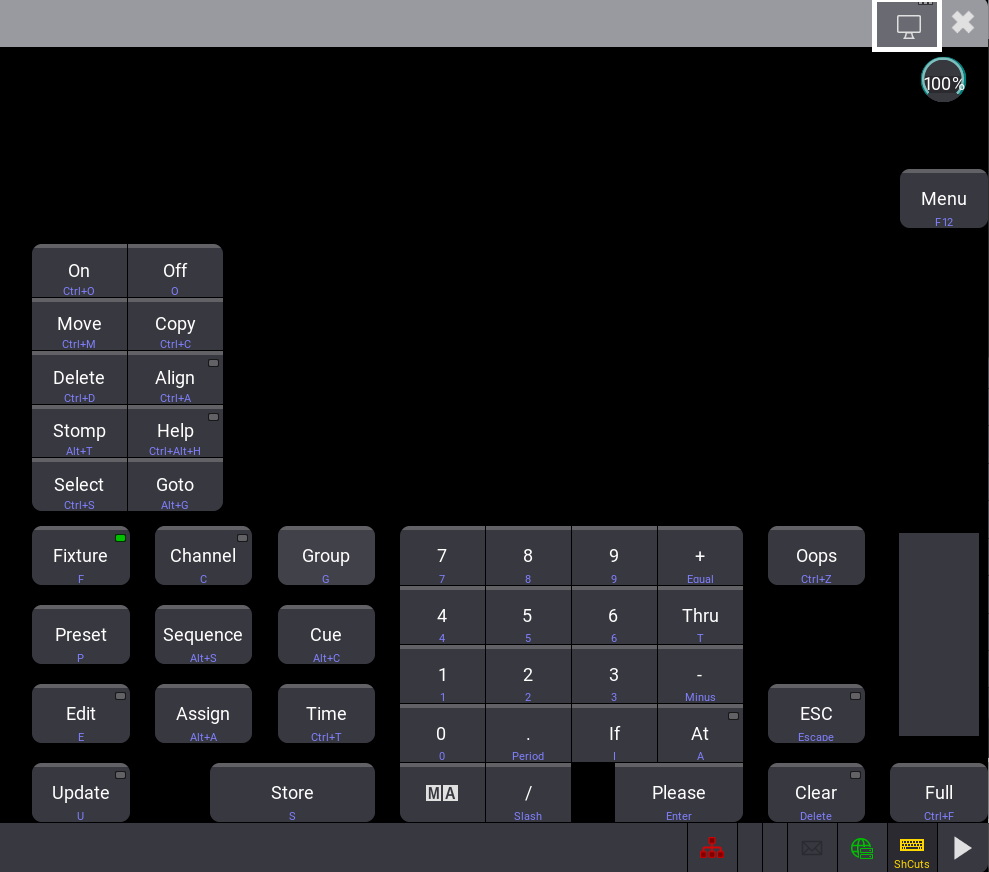
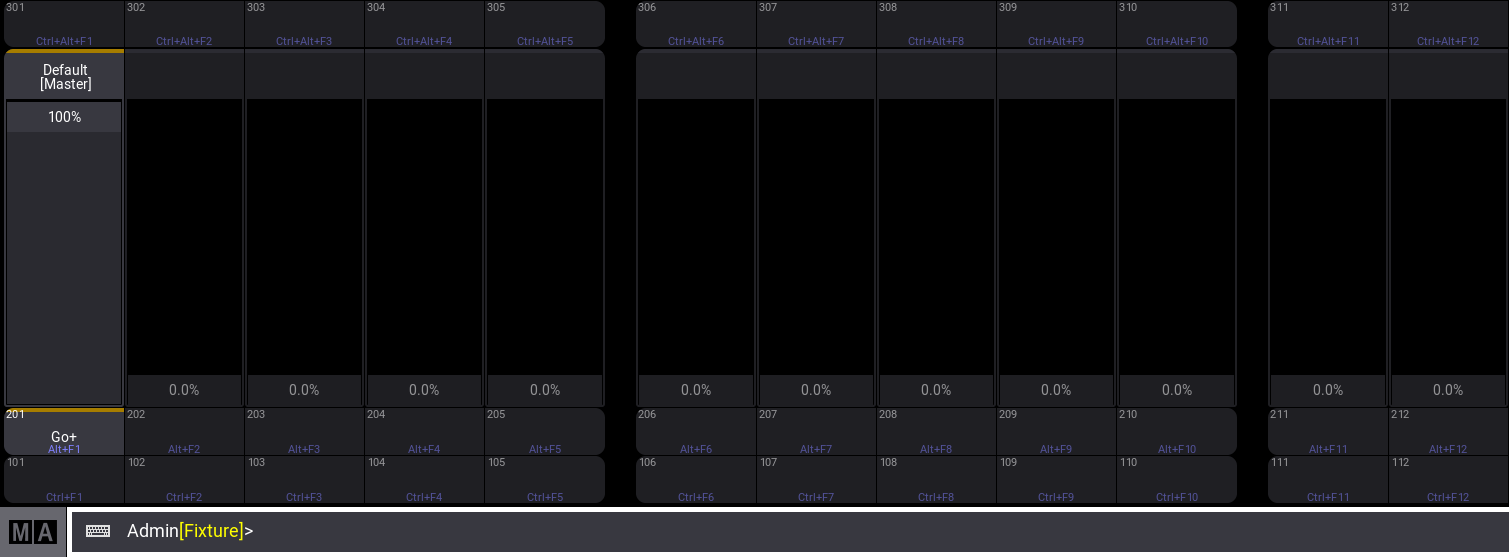
Keyboard Shortcuts Window
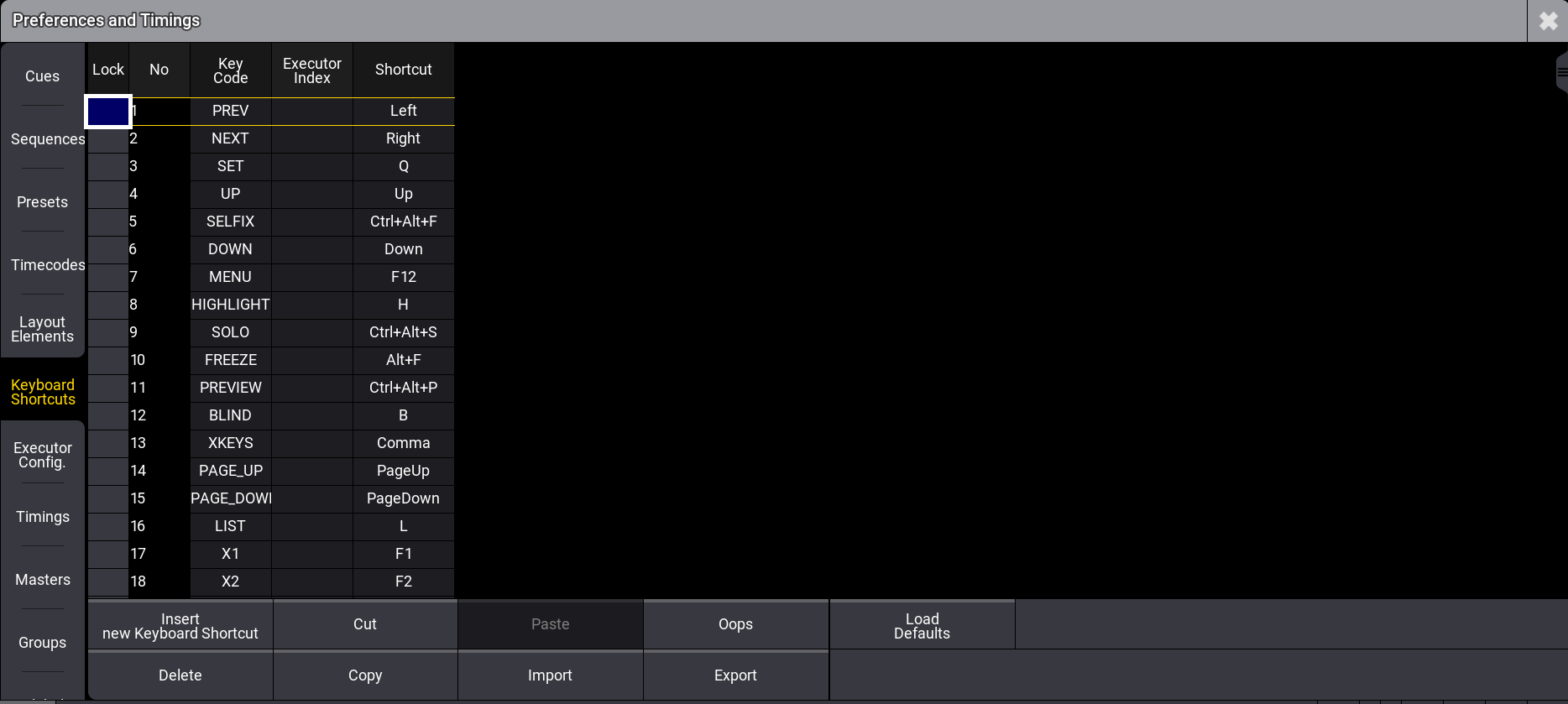
- To edit the shortcuts, open the Preferences and Timings window.
- Tap Keyboard Shortcuts.
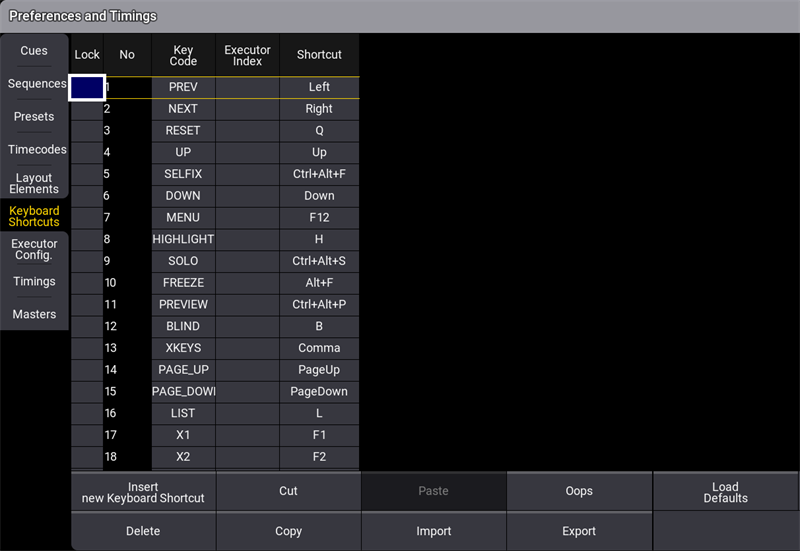
The Keyboard Shortcuts window opens:
 Add Keyboard Shortcuts
 - To add a new keyboard shortcut at the end of the list, scroll down, tap New KeyboardShortcut, and then tap Insert new Keyboard Shortcut. A new empty cell is generated at the end of the list.
- Tap and hold or right-click on the empty cell. The Select Key Code pop-up opens.
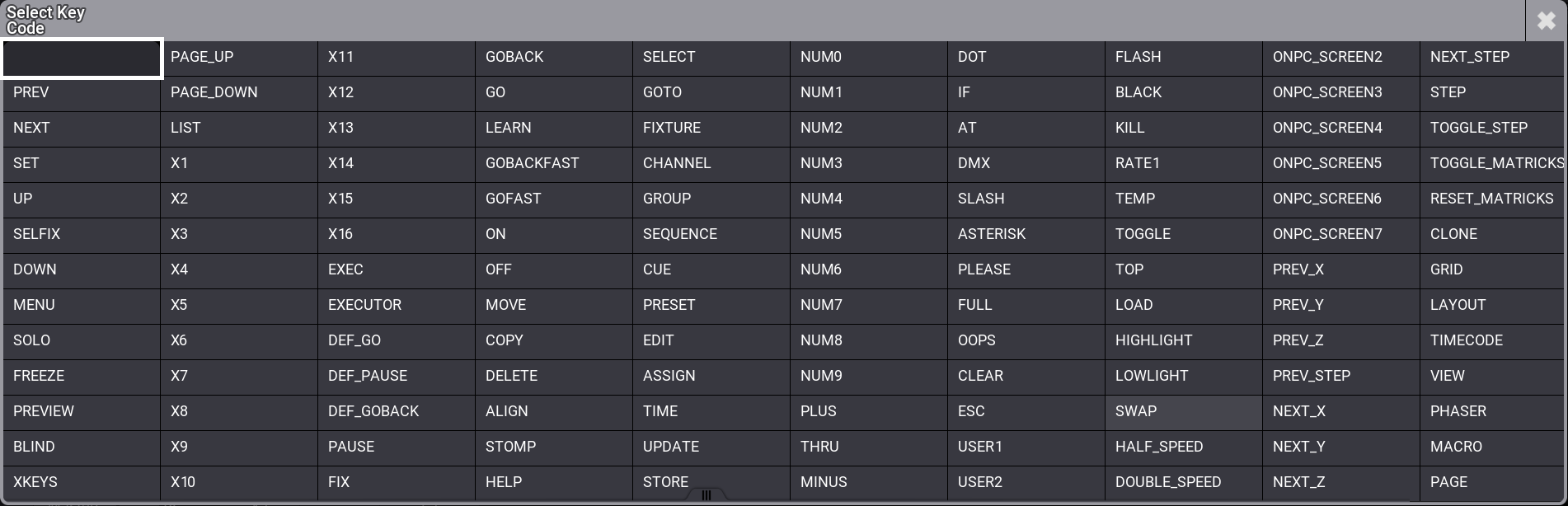
- Select the desired key code from the pop-up list. The pop-up closes.
-
To open the Edit Keyboard Shortcut pop-up, tap and hold or right click on the empty cell in the Shortcut
row.

Edit Keyboard shortcut pop-up -
To enter the desired shortcut, press the relevant keys. The pop-up closes.
- To confirm the shortcut tap Ok.
- To clear the shortcut, tap None.
- To cancel the edit, tap X.
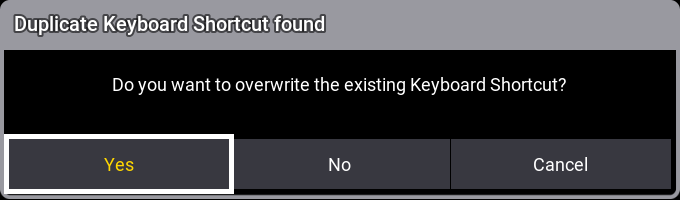
- If a keyboard shortcut already exists, a warning pop-up appears. Tap Yes to save the new shortcut.
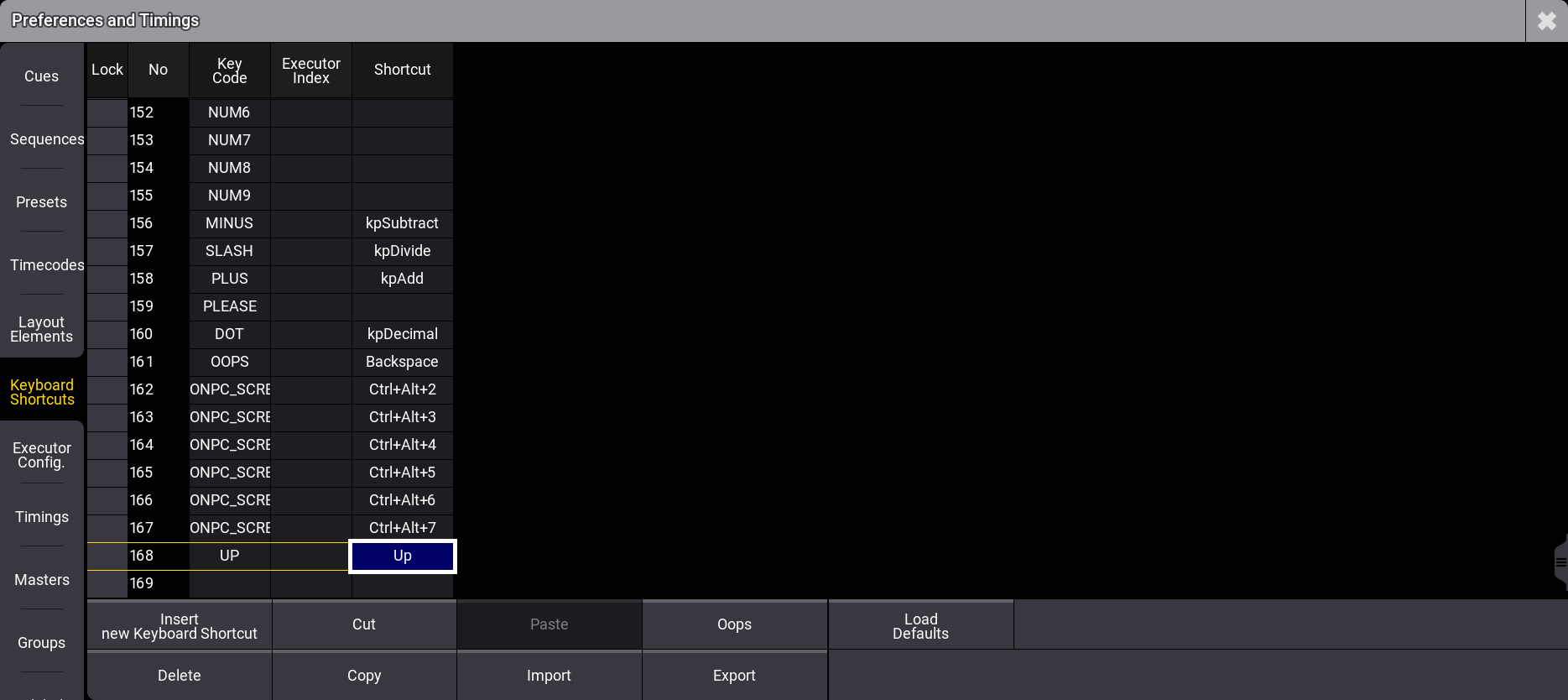
- The new shortcut is added to the list.
Add Executor Index
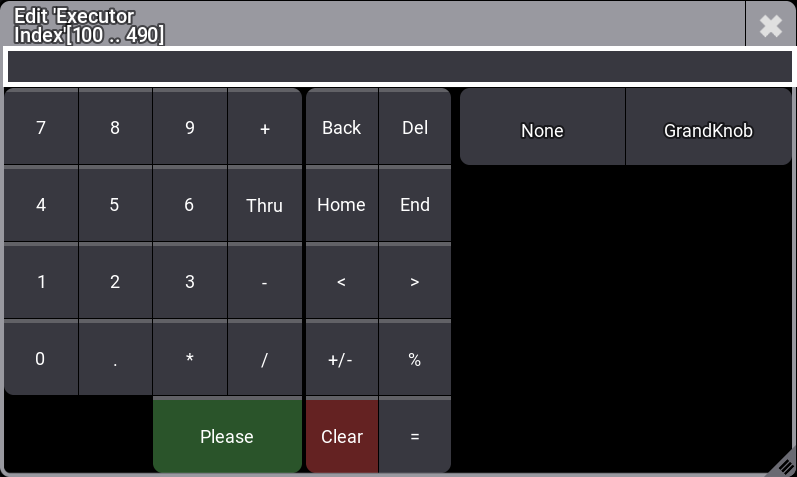
The Executor Index column defines the executor that is triggered when executing the corresponding shortcut. The executor will have its shortcut displayed in lavender color in the playbacks control window when ShCuts is enabled.
Edit Existing Keyboard Shortcut
- To edit an existing shortcut definition, tap and hold the Keyboard Shortcut you want to edit.
The Edit keyboard shortcut pop-up opens:

- Enter the new shortcut.
Delete Keyboard Shortcuts
- To select the keyboard shortcut to be deleted, tap the desired shortcut.
- Tap Delete.
- The keyboard shortcut is deleted. To undo a deletion, tap Oops.
Reset Keyboard Shortcuts to Defaults
- To reset the keyboard shortcuts to their defaults, tap Load Defaults. The keyboard shortcuts are reset to their defaults.
|
|
Hint: |
| The Shift keys on the keyboard correspond with the MA keys on the console. |
Import / Export Keyboard Shortcuts
- To import or export the keyboard shortcuts, tap Import or Export.
By default, files will be exported to the relevant folder within the library folder structure, either on the local drive of the console or onPC station, or on a selected USB drive. For more information about this folder structure, see the Folder Structure topic.
For information about exporting and importing show data using command line syntax without the use of these menus, see the Export keyword and Import keyword topics.