|
grandMA3 User Manual » Single User and Multi User Systems » Object Ownership
|
Version 2.5 |
A multi-user setup presents a situation where multiple users can try to edit the same object. This could cause unpredictable problems.
The grandMA3 system has a locking mechanism that temporarily prevents multiple users from editing the same object.
When a user starts to edit an object, the other users are presented with a pulsing lock icon and some text offering information about the station and the user editing the object.

An object can be fully locked by another user editing the entire object. A big red lock indicates this (see the example above).
Objects can be partially locked. This means that only a part of the object is being edited and is currently locked. Other elements of the object can still be edited. For instance, line two in a macro can be locked by an edit, but the other lines are still unlocked. In this case, the main object editor will display red locks on the locked elements.
All users can use the object while it is being edited, but using it before the edit is complete might not reflect the edited values.
The user editing the object owns it while it is being edited. The station being used to edit the object might get a green frame in relevant windows while it is being edited. The frame appears if the window shows the entire object being edited. For instance, a preset will display the frame on a fixture sheet. Editing a cell, like the command input in a macro line, does not show a green frame in the macro editor. Suppose the editing user is logged into several stations. In that case, other stations with this user display a yellow frame around the relevant windows to indicate the user has started editing an object on a different station.
If a different user tries to edit a temporarily locked object, a pop-up appears with additional information:
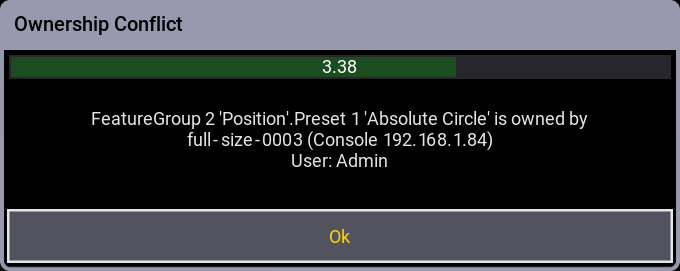
The pop-up has a 10 seconds countdown that automatically closes the pop-up. It can be closed before the countdown ends by tapping Ok.
A user can try to get ownership of a temporarily locked object using the DropOwnership keyword.
This presents a pop-up at the stations belonging to the user who owns the object:
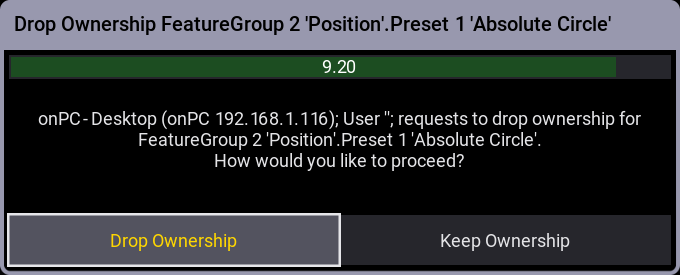
In this pop-up, the current owner can choose to drop the ownership by tapping Drop Ownership or keep it by tapping Keep Ownership.
This pop-up also has a countdown of 10 seconds. If the time runs out, then the ownership is dropped. This is the default action that allows other users to get objects currently owned by a user who has left the stations and simultaneously allows a user to keep ownership as an active choice.
The ListOwnership keyword can list all or specific ownerships in a session. The result is shown in the Command Line History window.

|
Hint: |
|
Objects can also be locked by automatic processes that start as a follow-up of the user's actions.
For example, when a user updates a preset, the Total Reference Update mechanism locks the needed objects with ownership while running. The automatic process owns the objects while the update process is running.
|